A Look at the Traditional Approach to Document Analysis #
We all have our preferred way on how to approach this challenge. Some of us still prefer to print out the document as a first step, start reading it meticulously, and adding handwritten notes. I understand the appeal—there’s something very tactile about physically engaging with the material and if this is your preferred way there´s nothing wrong about it. On the other hand the practical limitations are clear: restricted space for notes and the considerable effort involved in digitizing those valuable insights later. This, of course, makes it difficult to reuse them or add/connect them to your existing knowledge base.
If you decide to stay in a digital environment, you probably will turn to text editors or PDF annotation tools or other familiar options like Microsoft Word, OneNote, or other specialized PDF software. You use the tools that you are familiar with and that are readily accessible based on the environment you are working in.
I personally use Logseq as the foundation of my Personal Knowledge Management System. In the following, I’ll detail how this open-source tool addresses key challenges in document analysis, which led to my decision to adopt it for Document Analysis and as an editor and information repository for unstructured data.
Using logseq for Document Analysis #
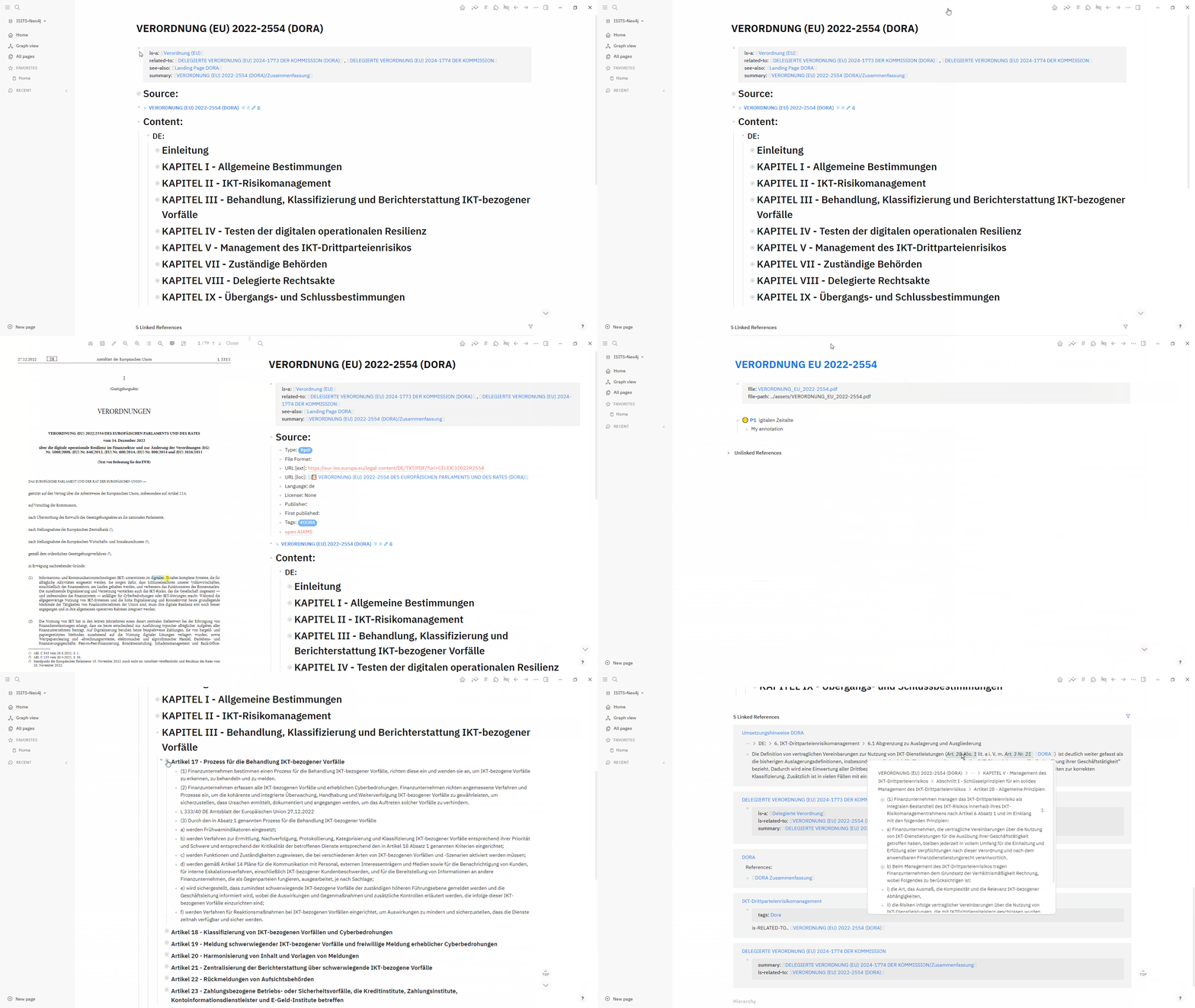
Logseq Demo (click to increase size)
Top three advantages using logseq for document analysis #
#1 logseq is an outliner #
An outliner is a type of application or feature designed for structured thinking, note-taking, and knowledge organization based on hierarchical lists. It allows you to:
-
Create hierarchical structures: You start with main points, and then you can create sub-points under them, and further sub-points under those, and so on. This creates a clear visual hierarchy of your thoughts and information.
-
Focus on individual points: Each point is treated as a discrete unit of information.
-
Collapse and expand sections: You can collapse branches to focus on specific areas or expand them to see the details. This helps manage complexity. The hierarchical structure allows for targeted search and contextual understanding, which is particularly useful when using AI to make sense of long texts.
- Rearrange and reorganize easily: Outliners make it simple to move entire branches of your outline around, promoting flexible structuring and restructuring of your ideas.
#2 Easy integration with existing content using Cross-site linking #
logseq functions like a WIKI system. You can easily create new content and link it to an entire page or a text block on a page. There are several ways how to link pages and even paragraphs on pages.
Since the document at question in most cases is being added to my existing Knowledge Base, I can cross-link terms and concepts I am not (yet) all too familiar with, to already existing pages. This way I can refresh my memory, having the necessary information only a click away. Also I create for new terms/concepts a new page whenever it makes sense.
#3 Format is ready to be consumed by AI based tools #
Markdown and in particular logseq MD is easy to digest by AI based tools.
Other advantages using logseq #
Native PDF Annotation #
logseq shows the PDF document on the left site and text editor on the right side. Simply mark a text in a PDF text document and add a note in logseq.
Quick read - Overlay #
By hovering over a link, an overlay window appears showing the linked document. If needed, it can even be edited right in the overlay.
Searching/Finding #
logseq offers quite a powerful text search function which allows me to quickly find what I am looking for. Since it searches the entire Knowledge Graph, I often come across notes I made years ago in a different context, which leads to a “Connecting the dots” moment.
Table of content (TOC) #
The TOC plugin allows you to quickly navigate to the document structure
How to convert a PDF document into a format supported by an outliner #
There are several tools capable of transforming PDF to markdown. Initially I used the python library PdfReader. The result was somewhat satisfying so I had to spend some time in formatting the page until the document was properly structured. Later on I used IBM’s toolkit docling which had been open sourced end of 2024. Results were considerable better. docling provides a Python API and CLI tool. If API and CLI sounds spoofy to you you want to consult your favorite nerd/Ai/search engine.
Examples: #
Native PDF Annotation - adding a diagram generated by AI to visualize concepts #
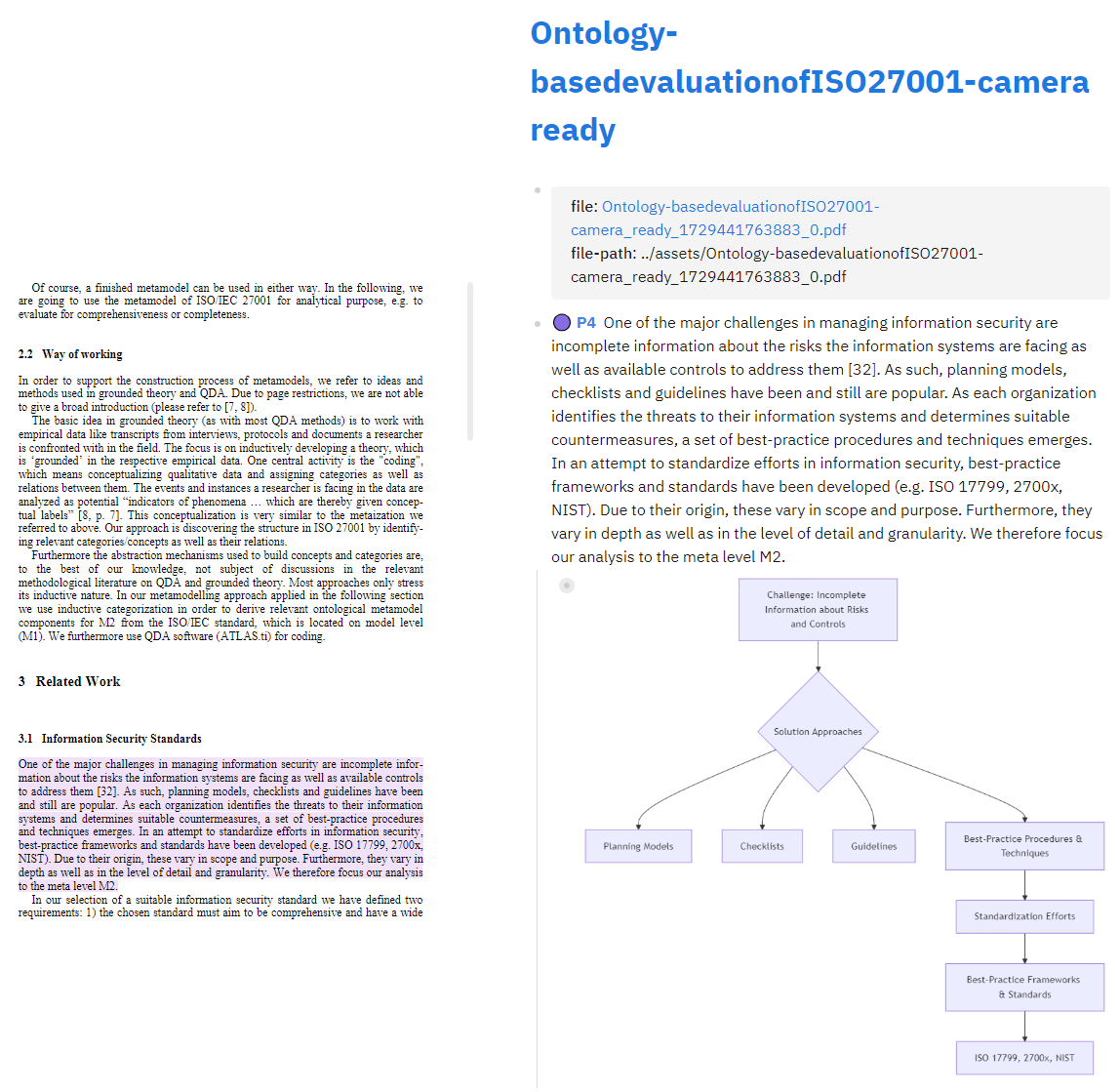
Using PDF annotation to include a diagram generated by AI (click to increase size)